import cv2
import numpy as np
import matplotlib.pyplot as plt
from sklearn.cluster import KMeans

def get_image_stats(img_path):
    img_bgr = cv2.imread(img_path)
    img_rgb = cv2.cvtColor(img_bgr, cv2.COLOR_BGR2RGB)
    img_gray = cv2.cvtColor(img_bgr, cv2.COLOR_BGR2GRAY)

    avg_brightness = np.mean(img_gray)
    contrast = np.std(img_gray)

    r_mean = np.mean(img_rgb[:,:,0])
    g_mean = np.mean(img_rgb[:,:,1])
    b_mean = np.mean(img_rgb[:,:,2])
    warm_cool_score = r_mean - b_mean

    pixels = img_rgb.reshape(-1, 3)
    pixels_sample = pixels[np.random.choice(pixels.shape[0], 5000, replace=False)]
    kmeans = KMeans(n_clusters=3, n_init=10)
    kmeans.fit(pixels_sample)
    dominant_colors = kmeans.cluster_centers_.astype(int)

    return {
        'img_rgb': img_rgb,
        'img_gray': img_gray,
        'avg_brightness': avg_brightness,
        'contrast': contrast,
        'warm_cool_score': warm_cool_score,
        'dominant_colors': dominant_colors
    }

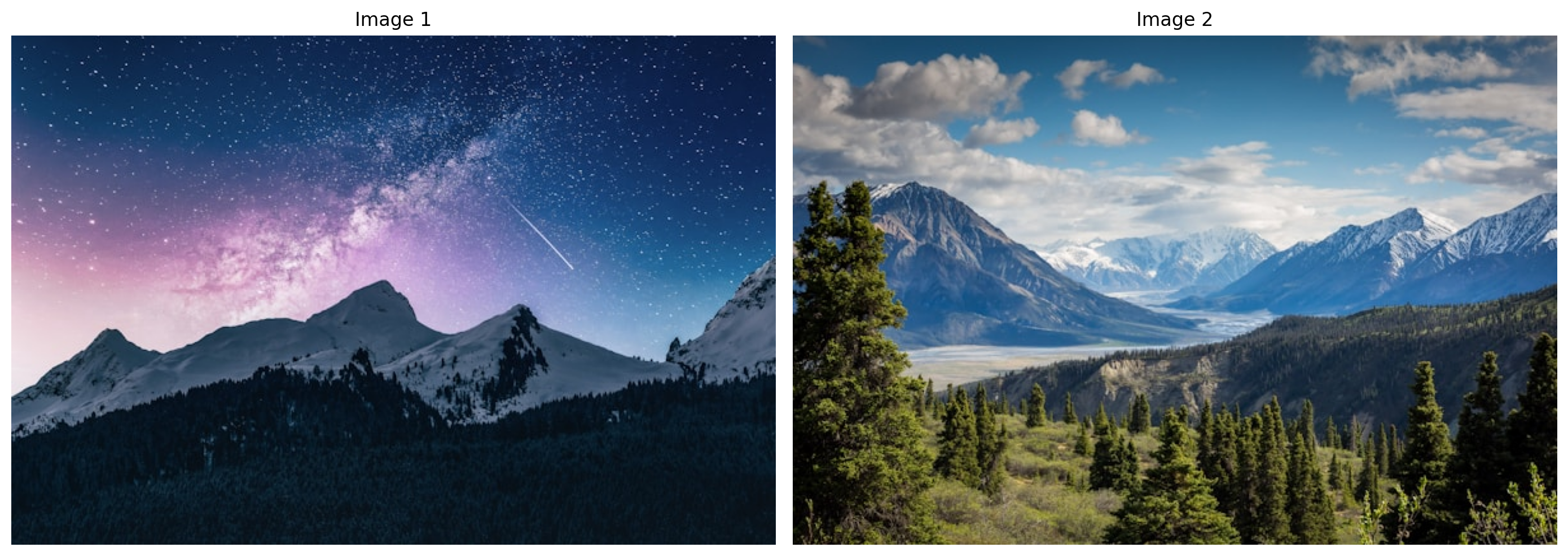
stats0 = get_image_stats('input_file_0.jpeg')
stats1 = get_image_stats('input_file_1.jpeg')

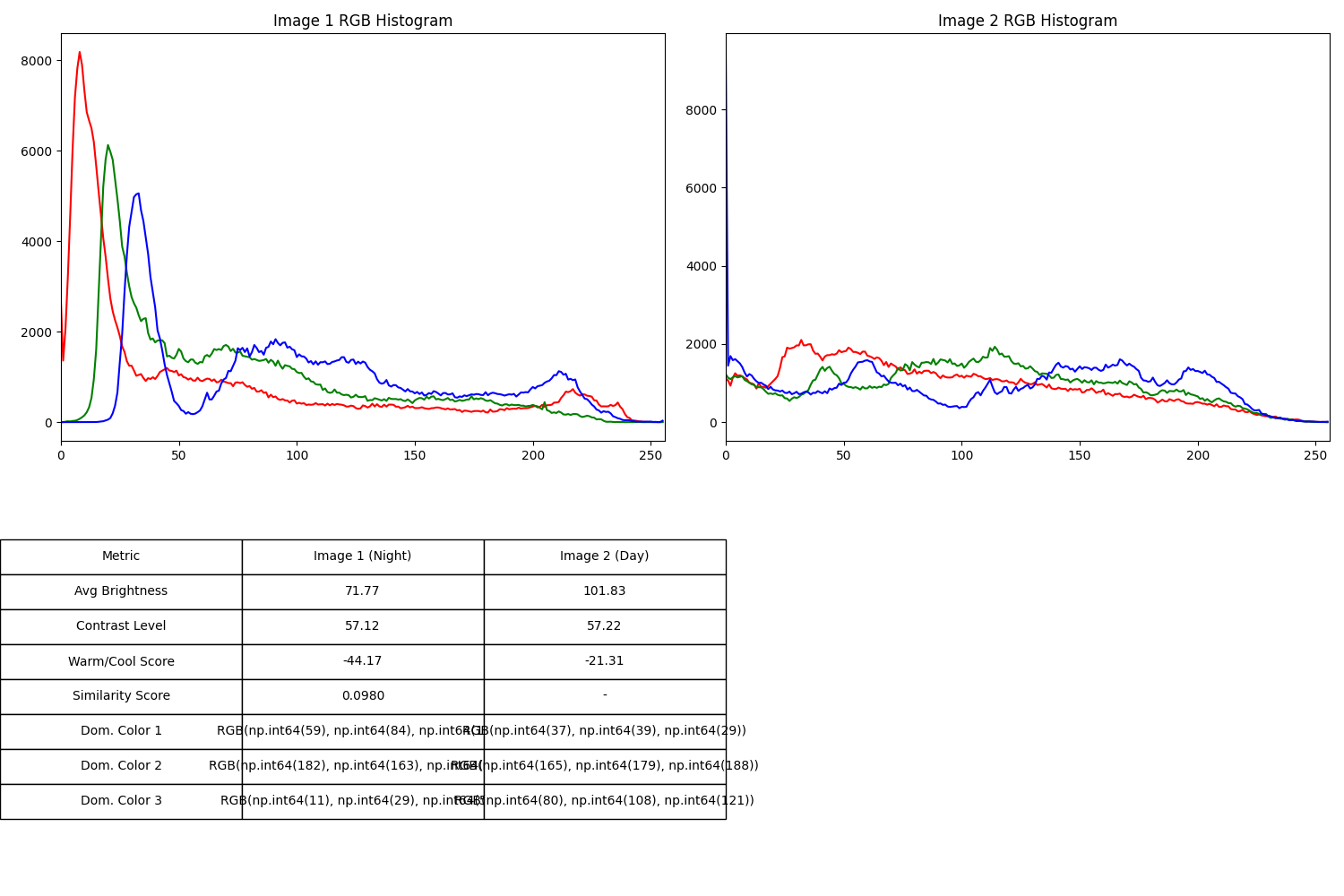
hist0_r = cv2.calcHist([stats0['img_rgb']], [0], None, [256], [0, 256])
hist0_g = cv2.calcHist([stats0['img_rgb']], [1], None, [256], [0, 256])
hist0_b = cv2.calcHist([stats0['img_rgb']], [2], None, [256], [0, 256])

hist1_r = cv2.calcHist([stats1['img_rgb']], [0], None, [256], [0, 256])
hist1_g = cv2.calcHist([stats1['img_rgb']], [1], None, [256], [0, 256])
hist1_b = cv2.calcHist([stats1['img_rgb']], [2], None, [256], [0, 256])

sim_r = cv2.compareHist(hist0_r, hist1_r, cv2.HISTCMP_CORREL)
sim_g = cv2.compareHist(hist0_g, hist1_g, cv2.HISTCMP_CORREL)
sim_b = cv2.compareHist(hist0_b, hist1_b, cv2.HISTCMP_CORREL)
avg_similarity = (sim_r + sim_g + sim_b) / 3

fig, axes = plt.subplots(2, 2, figsize=(15, 10))

colors = ('red', 'green', 'blue')
for i, col in enumerate(colors):
    hist0 = cv2.calcHist([stats0['img_rgb']], [i], None, [256], [0, 256])
    axes[0, 0].plot(hist0, color=col)
axes[0, 0].set_title('Image 1 RGB Histogram')
axes[0, 0].set_xlim([0, 256])

for i, col in enumerate(colors):
    hist1 = cv2.calcHist([stats1['img_rgb']], [i], None, [256], [0, 256])
    axes[0, 1].plot(hist1, color=col)
axes[0, 1].set_title('Image 2 RGB Histogram')
axes[0, 1].set_xlim([0, 256])

table_data = [
    ["Metric", "Image 1 (Night)", "Image 2 (Day)"],
    ["Avg Brightness", f"{stats0['avg_brightness']:.2f}", f"{stats1['avg_brightness']:.2f}"],
    ["Contrast Level", f"{stats0['contrast']:.2f}", f"{stats1['contrast']:.2f}"],
    ["Warm/Cool Score", f"{stats0['warm_cool_score']:.2f}", f"{stats1['warm_cool_score']:.2f}"],
    ["Similarity Score", f"{avg_similarity:.4f}", "-"],
]

for i in range(3):
    c0 = stats0['dominant_colors'][i]
    c1 = stats1['dominant_colors'][i]
    table_data.append([f"Dom. Color {i+1}", f"RGB{tuple(c0)}", f"RGB{tuple(c1)}"])

axes[1, 0].axis('off')
axes[1, 1].axis('off')
table = axes[1, 0].table(cellText=table_data, loc='center', cellLoc='center')
table.auto_set_font_size(False)
table.set_fontsize(10)
table.scale(1.2, 1.8)

plt.tight_layout()
plt.savefig('comparison_results.png')
plt.show()